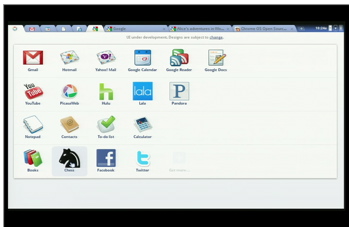
Google Has Plan to Bring Chrome OS For Desktop

Google says its also working on a Chrome OS version for desktop. Google recently announce to launch Chrome OS for notebooks this summer and this will comes with a series of notebooks (Chromebooks) developed by Acer and Samsung. Google wants to bring operating system for desktop systems as it said at the Google I/O developer summit.

First Google will launch Chrome OS for notebook which designed to be used as a fast booting OS for low-power notebooks and with two netbook designs from Samsung and Acer. It has a very low hardware requirements and can run on any system without any performance drop and same time it'll give the fast boost times. The Chrome OS netbooks built by both Samsung and Acer are powered by an Intel Atom N570 processor, which packs two computing cores running at 1.66GHz. The Intel CPU is paired together with 2GB of system memory and Samsung's Series 5 netbooks also feature a 16GB SSD as well as a 12-inch LED backlit screen. The netbooks will be available around June 15 in US, UK, Germany, Netherlands, Spain.

And now Google also plans to develop a “Chromebox” desktop which will be primarily targeted at the enterprise market, where users may require multiple displays. Though Google hasn't yet unveiled any information about the launch date of “Chromebox” desktop and pricing details.

Comments

Popular posts from this blog

Siemens Mobile Secret Codes

C25: SP unlock *#0003*(secret code 8 digits)# *#0606# shows you Secret Code but only without SIM Card. *#06# for checking the IMEI (International Mobile Equipment Identity) Resets language to automatic selection : * # 0000 # then Green button Pin Out (electrical connections) 1- GND 2- SB 3- POWER 4- NC 5- TX 6- RX 7- CLOCK 8- DATA 9- GND MIC 10- HF MIC 11- AUDIO 12- GND AUDIO Languages: *#0000#+green phone - choose automaticaly *#0001#+green phone - English *#0030#+green phone - Greek *#0031#+green phone - Netherlands *#0032#+green phone - French *#0034#+green phone - Spanish *#0039#+green phone - Italian *#0049#+green phone - German *#0090#+green phone - Turkish How to change PIN: **04*old PIN*new PIN*new PIN# How to check simlock status *#0606# and then press left soft-key, you will see strange characters, then text ("brak blokad"). If you see for example 260-02, it means the phone is locked to Era GSM. In older models you can use *#06# and see the same information afte...

Top 10 Tips To Improve System Speed

1 .Let your PC boot up completely before opening any applications. 2 .Refresh the desktop after closing any application. This will remove any unused files from the RAM. 3 .Do not set very large file size images as your wallpaper. Do not keep a wallpaper at all if your PC is low on RAM (less than 64 MB). 4 .Do not clutter your Desktop with a lot of shortcuts. Each shortcut on the desktop uses up to 500 bytes of RAM 5 .Empty the recycle bin regularly. The files are not really deleted from your hard drive until you empty the recycle bin. 6 .Delete the temporary internet files regularly. 7 .Defragment your hard drive once every two months. This will free up a lot of space on your hard drive and rearrange the files so that your applications run faster. 8 .Always make two partitions in your hard drive. Install all large Softwares (like PSP, Photoshop, 3DS Max etc) in the second partition. Windows uses all the available empty space in C drive as virtual memory when your Computer RAM is full. ...

Changing a users icon on the Welcome screen

Each user that is set up on your computer can associate an image that appears next to his or her name on the Welcome screen. By default, Windows will randomly select an image for you, but this selection can easily be changed. If you do not like the images that Windows has to offer, you can select any other image. The process of changing a user's image is very simple. Just perform the following steps and you will have it changed in no time: 1. Open up the user manager by clicking the Start menu and selecting Run. Then type in nusrmgr.cpland click OK.This is a shortcut to User Accounts that will save you time going to Control Panel and then clicking the User Accounts icon. 2. This will start up the New User Accounts Manager. To change a user's picture, just click the user name. 3. Then, click Change My Picture text and you will see a screen with all of the different images that are built into Windows XP. 4. If you see one you like, just select it by clicking it and then cl...